
Licensing model
Before you get to licensing and billing, it helps to know how workspaces, events, locations and talks relate to each other in Amphi. A licence (plan) always belongs to one specific event.
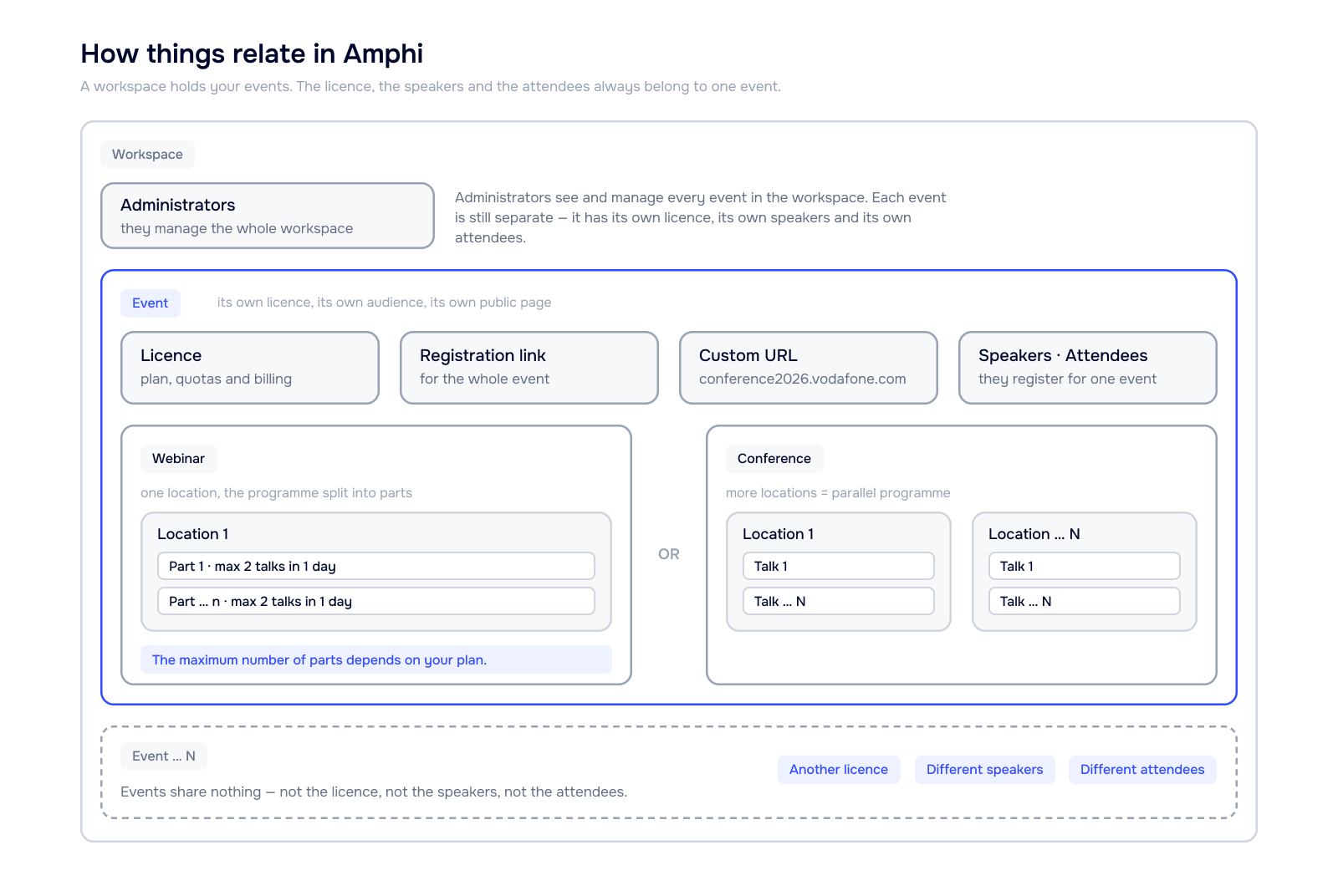
Coming soon If you are a large event agency, you can invite the administrators of the individual companies whose conferences you run. You then set it up so that a given administrator only has access to one specific event.
Complete license payment schemes by event type: a webinar, a single conference, and the annual "unlimited" plan.
Billing scheme – Premium Webinar
Monthly license example: switching to Premium on Jan 16
Plan renewal: every successful charge on the renewal day (the 16th) extends the license by another month. If a payment fails, the Event enters Archive mode on that day.
FreePremiumArchiveJanuaryFebruaryMarchAprilJan 16
Switch to Premium · 1st payment
Feb 16
Automatic charge (renewal)
Mar 16
renewal
Apr 16
renewal
Free plan
Premium license – recurring monthly payment
if the Feb 16 payment fails
Archive mode – immediately from Feb 16
the public page stays online
admin-only mode: no new talks, registrations, or e-mail sending
Purchases at the end of the month (29th–31st)
A renewal day that doesn't exist in a given month shifts to its last day; the following month the date moves back.
Jan 31→Feb 28/29→Mar 31→Apr 30→May 31
Billing scheme – Premium Conference, 1 conference
One-off license
The 1st conference day is set at payment; from that day you have 30 days for the whole conference and then 365 days of post-conference operation.
FreePremiumArchiveBefore the conference
Conference window
30 days
After the conference
License purchase
1st conference day
Free plan
preparation
Post-conference operation
365 days: feedback collection, newsletters ...
Archive
read-only
Your license
This license lets you raise your quotas above the Free tier limits. If you exceed the base quotas, the overage is invoiced automatically every month, until the conference enters archive mode. For details see Recurring billing.
Note: The 1st conference day can be changed later, but all talks must still fit within the 30-day conference window.
Archive mode can be switched on manually at any time. That stops the additional monthly billing for extra users and e-mails.
You can't upgrade from Premium Webinar to Premium Conference by paying the difference. The only change possible is from the Free plan by paying the full conference price.
A talk scheduled outside the 30-day conference window is another conference and requires a new payment.
Billing scheme – Premium Conference, up to 50 conferences
One payment per license year (365 days)
Run up to 50 separate conferences – each with its own cycle (a 30-day conference window + 365 days of post-conference operation)
FreePremiumArchiveLicense year (365 days) – run up to 50 conferences within it
Annual plan purchase
6 mo.
12 mo.
Conf. 1
30 days
365 days of operation
archive
Conf. 2
30 days
365 days of operation
archive
Conf. 50
30 days
365 days of operation
archive
Conferences
Each conference is subject to the same terms and limits as a standalone conference, see Billing scheme – Premium Conference, 1 conference
Note: The annual plan can't be bought as a top-up to an existing 1-conference license. It is purchased separately at full price.
The license price covers your event's base quotas. Exceed them and Amphi bills the difference in arrears for the previous month, on a separate invoice.
How it works
- 1Every license has base quotas; see the pricing table.
- 2Amphi notifies you at 50%, 80%, and 100% of capacity so you can decide before you hit the limit.
- 3Once a limit is reached, that service stops until you raise the quota manually, where raising it is possible for that quota; see Raising quotas.
- 4Whatever sits above the base limit is invoiced the following month, until the event switches to archive mode.
- 5Archive mode ends the billing, whether the event enters it automatically or you switch it on yourself; see What archive mode is. An event cannot be switched back out of archive, though.
When and how you're billed
Recurring billing always runs in arrears for the previous calendar month. The cut-off is the end of month (EOM): Amphi evaluates how far you went over the base quotas and invoices the difference. The same mechanism applies to Webinar and Conference alike.
The invoice for these services arrives separately, apart from the license invoice.
What gets billed
All prices shown are exclusive of VAT. Rates are listed in every currency Amphi bills in; you are charged in your license's currency.
Attendees above the quota
Every user who registers for the event and isn't blocked counts, regardless of whether they actually attend a talk. Admins and speakers don't count. You're billed for attendees actually registered above the base limit, not for the size of the quota you set, so you can set the quota with headroom without paying for that headroom. A deleted attendee doesn't count either.
The invite link works independently of the quota. You can send it to 5,000 people, but if the quota is set to 1,000, the 1,001st person will not get registered, even though the registration screen still opens for them.
Attendees above the base quota are billed for every month. Example: the base quota is 1,000 and your attendee count is 1,050 in January, 1,070 in February, and 1,080 in March. Amphi invoices 50 × the per-attendee price for January, 70 × the per-attendee price for February, and 80 × the per-attendee price for March.
| Plan | Base quota | Each extra attendee |
|---|---|---|
| Free | 100 | cannot be raised |
| Premium Webinar | 180 | €0.10 · $0.12 · 2.50 Kč |
| Premium Conference | 1,000 | €0.10 · $0.12 · 2.50 Kč |
| Enterprise | unlimited |
Video hours above the limit
These apply only to video uploaded directly to Amphi; if your talks embed a link to YouTube, Vimeo, or SlidesLive, no video hours are consumed at all. A video hour (vh) is one hour of video streamed to one attendee: a 2-hour recording watched by 200 people is 400 vh.
On Premium Webinar the video-hour quota always covers one calendar month. It resets to its original size with each new month; unused video hours do not accumulate and do not carry over.
| Plan | Included volume | Each extra vh |
|---|---|---|
| Premium Webinar | 2,500 vh per month | €0.05 · $0.06 · 2 Kč |
| Premium Conference | 5,000 vh per conference | €0.05 · $0.06 · 2 Kč |
What is never billed this way
Not every limit can be paid past. These require a new license or a different plan:
| Limit | What it takes |
|---|---|
| A conference running longer than 30 days | a separate license for talks outside the window |
| Another event or a new edition of a conference | a new license (the annual plan covers up to 50) |
| More than 12 webinar episodes a year | a new event |
| More talks per day than the plan allows | the Enterprise plan |
| Emails above the limit on Premium plans | not possible; Enterprise only |
| Storage above the limit | not adjustable; Enterprise only, by agreement |
The Free tier has no recurring billing at all. Once any quota is used up the service stops, and the only way forward is moving to a paid plan.
How to stop the billing
- Close registration with a single button. The public page and program stay online, nobody new signs up, and the attendee quota stops growing.
- Switch the event to archive mode. You can do this manually at any time and it halts all additional billing. The public page stays online with recordings, schedule, and speaker profiles; the admin becomes read-only. The switch is irreversible: an event cannot be brought back out of archive.
- Archive mode also starts on its own: on Premium Webinar on the renewal day if the payment fails; on Premium Conference on the 365th day after the 30-day event window ends.
Not every email you send counts toward your limit. Amphi distinguishes service emails from the rest of your own communication.
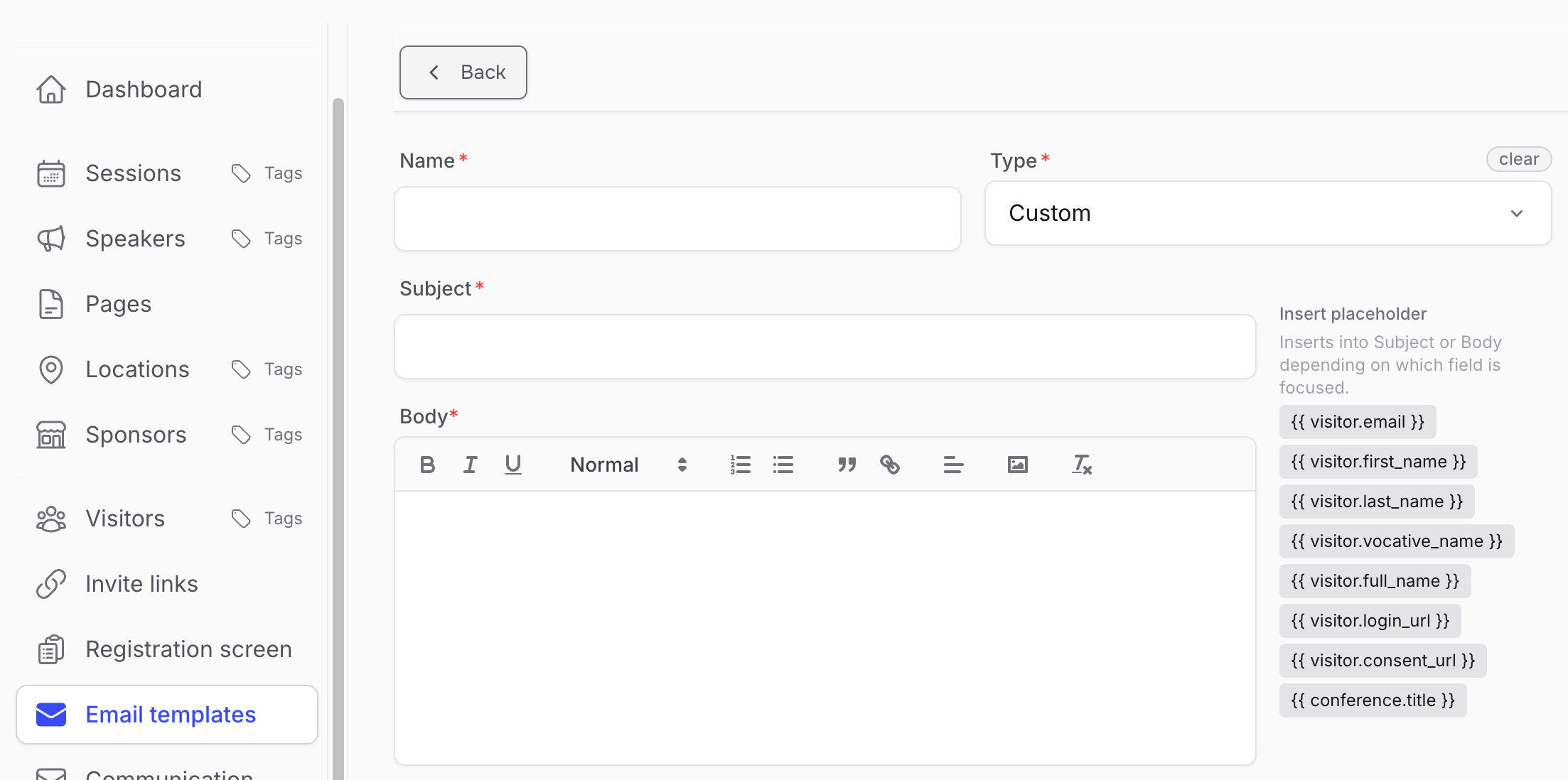
Typically only emails in the “Custom” category count; you set that category in Email templates.
Unlike service emails, every email you send in the “Custom” category counts towards the limit set by your plan.
Examples
| Type | Counts toward the limit? | |
|---|---|---|
| Welcome email on registration | Service | No |
| Password reset | Service | No |
| Applicant / attendee invite | Service | No |
| Reminder for an unfinished invite | Service | No |
| Speaker invite | Service | No |
| Capacity notice at 50 / 80 / 100 % | Service | No |
| Reminders before a session | Custom | Yes |
| Bulk marketing emails | Custom | Yes |
| Targeted emails to a tag | Custom | Yes |
| Feedback collection | Custom | Yes |
| and more … |
Some quotas can be adjusted beyond their default limit. Amphi never raises them for you. Amphi will keep you informed about their status.
Which quotas you can set
| Quota | Adjustable on | Note |
|---|---|---|
| Attendees | Premium and Enterprise | billed for registrations above the base limit |
| Video hours | Premium and Enterprise | only for video uploaded directly to Amphi |
On the Free tier quotas cannot be adjusted. Once any of them runs out, the only way forward is moving to a paid plan.
Raising
You can raise a quota at any time, including mid-event. It takes effect immediately: registration reopens and video playback works right away.
Whatever sits above the base limit is then billed under the rules in Recurring billing for services. The base limit is listed in the table for your plan.
Lowering
A quota can be moved down as well, but only to a value that makes sense given what you've already used. With 1,500 attendees registered you cannot drop the quota to 1,300; the floor is always your current actual usage. A quota can also be moved below your plan's base limit. That doesn't trigger any refund for unused capacity, though.
Setting each quota
Attendees
Set on paid plans in your event's Overview.
Video hours
Set on paid plans in your event's Overview.
On the Enterprise plan the scope of services is set by contract. The items below therefore don't follow the price list but the agreement, and are invoiced separately.
- Emails beyond the limit: the limit is fixed on Premium plans; on Enterprise you can send past it.
- Storage space: both the allowance and the price of extra space by agreement.
- SLA: guaranteed response, availability, and support parameters.
- Key Account Manager and SPOC in your company chat tool.
- An individual retention policy: how long the event's space is kept.
Custom development (public page changes, bespoke admin functionality, or integrations with your internal systems) is ordered and invoiced separately, outside the regular license invoice.
Contact usArchive is an event's end state. The public page stays online, and the admin locks down for editing apart from a few exceptions. Some features stop working. All additional billing, on the other hand, stops.
When archive mode starts
- Manually, at any time. You can switch archive on yourself, typically once the event is over and you want to stop recurring billing.
- Premium Webinar: automatically on the renewal day if the payment for the next period fails.
- Premium Conference: automatically on the 365th day after the 30-day window for holding talks ends, so after 30 + 365 days.
- Enterprise: individually, per contract.
Where to turn archive on
You turn archive on manually in your event's Overview.
Switching to archive is irreversible. An event cannot be brought back, so turn archive on only once the event, including sending marketing emails, invitations to next year's edition and collecting feedback, is definitively behind you.
What stays in archive and what no longer works
For the full archive-mode specification, see the pricing.
- Stays availableThe event's public page stays online, at the same address.
- Stays availableYou can edit talk details and recordings, including the abstract, or hide them entirely. Recordings, materials, and speaker contacts can stay available.
- Stays availableThe schedule, speaker profiles, and partners and sponsors stay published.
- Not availableYou can no longer create talks, add locations or speakers, or upload files.
- Not availableTalk dates can no longer be changed.
- Not availableAttendees can no longer be managed, and registration does not work.
- Not availableYou cannot send emails or SMS reminders, collect feedback, or use chat and labels.
How long archive lasts
On Premium plans the event's space is kept for 2 years from the start of archive, after which it is physically deleted. On Enterprise, retention follows the contract.
The Free tier has no archive mode. The event's space is deleted 2 years after the admin last worked on the event.
Setup and first steps
The Free tier
The Free tier is enough to run a series of webinars or a smaller conference, non-commercial use included, for education, say, or to support and grow leisure activities.
A business organizer can use the Free tier instead of a demo, to try out what Amphi can do. Apart from one exception (uploading a video file), the Free tier is not cut down on features; only the quotas limit how far it takes you.
The licensing model also supports preparing an event on the Free tier for real from the start. As soon as prospective attendees begin registering, interest grows and you approach the quota ceiling, you can upgrade to a higher plan at any time. All the work you have done is kept.
The Premium tier
The Premium tier is aimed at the commercial sphere: at those who use Amphi as a sales channel, to build awareness of their brand, or for their own event-organizing business. The main difference from the Free tier is not the feature set but the quotas; Premium raises them across all functionality.
It is the higher quotas that let you make full use of regular, bulk communication with your audience: invitations, reminders and feedback collection. Amphi also helps you collect marketing consents from attendees right at registration; see GDPR and marketing consents.
Another big advantage is that the address of the public page can run on your company domain: conference.yourcompany.com. Setting it up is genuinely simple and we will help you; see Branding.
Technical support from the development team and a key account manager are available to you, both during setup and while the event runs.
The Enterprise model
Enterprise is a bespoke solution. You reach for it when you need an original site for your conference, integrations with your own systems, or features the standard plans do not cover.
We offer the full service, from analysis and design through to development. We do not run production services ourselves, but we will put you in touch with one of our partners. Both the scope and the price follow what you actually need; see Individual items (Enterprise).
Enterprise is agreed in a separate contract. The terms of the cooperation therefore differ from the standard terms and conditions.
Contact usFor every event you have to choose whether it is a webinar or a conference.
This choice cannot be changed later. Every event starts on the Free plan though, so you can try everything out first and upgrade to a paid plan only once you are sure.
| Premium Webinar | Premium Conference | |
|---|---|---|
| Nature | A recurring series: several talk days a year, each with several talks. For details see the pricing page. | One large event. It can be spread across several days. |
| License validity | 1 month from the payment date. | One-off, for a single event. |
| Event window | Depends on the number of talk days in your plan; see the feature comparison. | 30 calendar days at most. |
| After it ends | Without an active license the whole event moves to archive mode. | The space stays active for another 365 days. |
| Payment | Split into smaller monthly amounts. | Paid once. |
Webinar
The license runs for one month from the payment date. For details see License payments – schemes. Attendee registration, email sending and every other feature need an active license; once it expires, the whole event moves to archive mode.
Conference
No more than 30 calendar days may pass between the first and the last talk day. The date of the first talk day is set when you create a new Event.
After the 30-day talk window the conference space stays active for a further 365 days. During that time you can keep communicating with attendees through Amphi. Only then does the Event move to archive mode. That comes with certain limitations.
There is no limit on how long you use Amphi before the first talk day. You can start preparing the conference well in advance and add content gradually, have speakers fill in their profiles, or invite attendees; see Attendee and speaker registration.
Licensing
- One event needs one license.
- The discounted annual bundle of up to 50 licenses is available for Premium Conference only; it cannot be offered for Premium Webinar. See the pricing page.
Amphi does not replace video-call tools such as Teams or Zoom. Video is attached to a talk as a provider link or a stream; see Video recordings and live streaming in Amphi.
The public page is available as soon as the event is created
You create content in the admin, pages publish it, and the site menu makes it reachable for visitors.
The building blocks of an event
Amphi works with four basic kinds of content:
- Talk: title, abstract, time, video, chat.
- Speaker: the speaker can fill the profile in themselves.
- Location: more locations let talks run in parallel.
- Partners: partner and sponsor profiles.
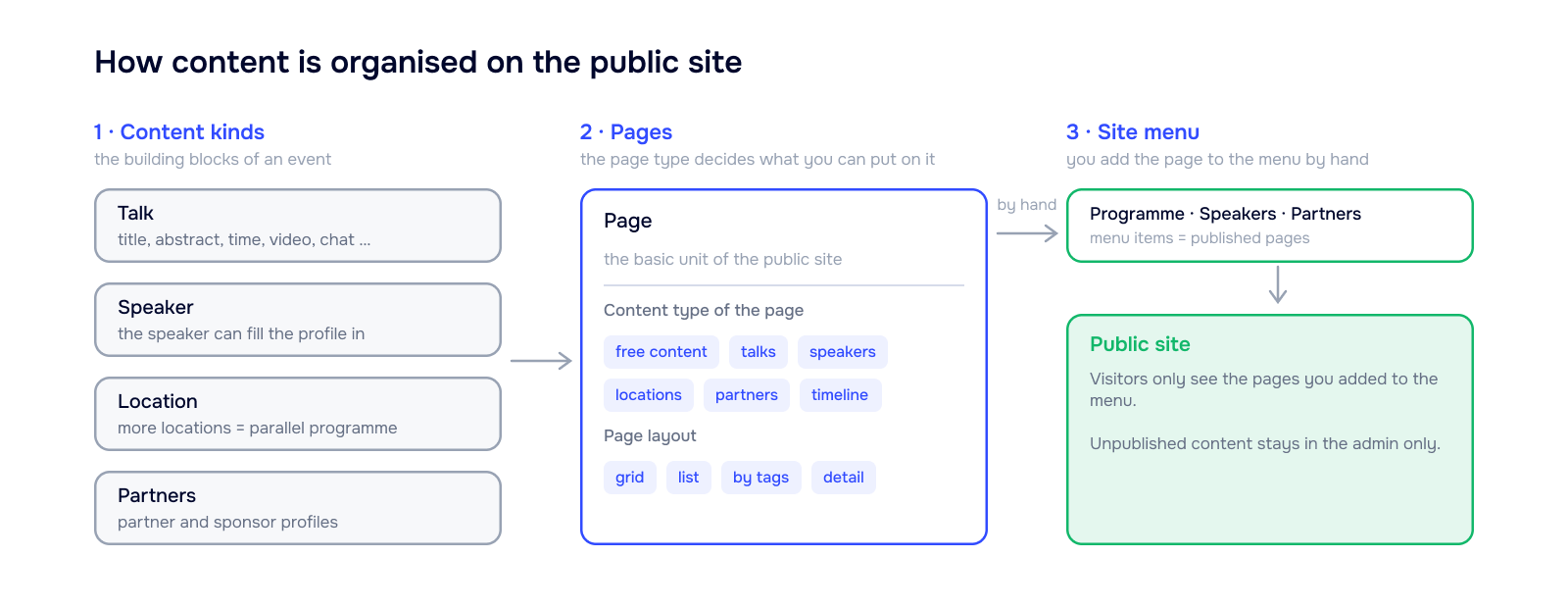
- The page type decides which kind of content you can put on it.
- The layout decides how the content is rendered: grid, list, a selection by tags, or the detail of a single item.
- A conference can have several locations; that is what lets talks run in parallel.
- Speakers and partners are created as profiles first and only then assigned to a page.
Tip: The by tags layout shows only the content marked with a given tag. You can, for example, split speakers into categories and show them separately on their own pages. See Tagging.
Content visibility
Content visibility is handled in several ways:
- by adding a page to the site menu, or removing it,
- by adding content to a page, or removing it,
- with the public / non-public switch on an individual talk or speaker.
Special case – talk accessibility
On top of the basic public / non-public setting, talks let you decide in more detail which visitor gets to see the content of the talk. There are three options:
- Public: anyone can view the content. If you put a live stream of your video into the talk, in theory anyone who lands on the page will be able to watch it.
- Visitors only: the visitor first has to register for the event and can view the content of the talk only after signing in on the public site. More in Attendee and speaker registration.
- Only those registered for the talk: use this option when, for example, the lecture hall has a limited number of seats and you need to make sure no more attendees turn up than there are seats.
Careful: Do not confuse registering for the event and the subsequent sign-in on the public site with signing up for a talk in the sense of “expressing interest in attending a particular talk”.
Amphi offers several predefined layouts for your event's site. Both the public page and the email communication can carry your own branding; see Branding.
If you would like a bespoke design for the public page, we are happy to agree the terms of an Enterprise license with you; see Individual items (Enterprise).
Contact usAmphi helps you promote your conference or webinar. There are two ways to do it.
- Sending invitations by email
- Creating an invite link
Sending invitations by email
You can import a list of prospective attendees you want to reach into Amphi. Those imported attendees can then be sent an invitation to your conference.
If you have set Amphi up to require registration, you can track how many attendees have already registered and who has not.
You can find out what options Amphi offers for building email templates here.
Amphi does not check on your behalf whether sending the invitation to your recipients complies with your GDPR obligations. More in GDPR and marketing consents.
Invite link
In Amphi you can create an “invite link”. You can place that link on your own website, or use it in any promotional campaigns you run for the conference. Clicking the link takes the user to your conference’s registration page.
Amphi also generates a QR code for the invite link.
Because you can generate several invite links, you can track which one brought you the most registrations.
More about registering users here.
Depending on the content visibility settings of your conference's public page, attendees may be required to sign in. Once signed in, speakers can edit their profile and upload materials for their talks.
Registration is required before signing in.
The registration screen is the same for attendees and speakers.
For everything to work, prepare the following in advance, or at least be ready for it:
- an invitation email template and a default reply-to address
- decide whether you want registration open to visitors
- registration links
- registration screen settings
Invitation email template and reply-to address
The registration process sends out an activation email, so you have to set up its template first.
You set it up in the admin under the Attendee communication and Email templates menu items.
You also need to set a default address that is used when someone replies to an email sent from Amphi.
See Email templates for more.
Open registration
If you set open registration to YES, anyone who lands on your conference's public page finds a registration button and can sign up.
That need not be a problem in itself, but these are so-called organic registrations: you cannot tell where the person came from.
If attribution of registered attendees matters to you, we recommend leaving this set to NO and using registration links instead.
Registration links and invitations keep working even when open registration is set to NO.
The number of registered attendees is capped by your plan. The quota starts at the default value for your plan and you can adjust it up or down. Going over the default number of attendees set by the plan starts automatic monthly recurring billing, see Recurring billing for services. The quota itself is not raised automatically, see Raising quotas.
Registration links
This is an ordinary web link. Clicking it opens the registration screen.
Amphi can track which registration link an attendee came from.
See How to promote your conference for more.
Registration screen settings
There is only one registration screen for all invite links, and it is shared by speakers and attendees alike.
Amphi lets you configure the following properties of the registration screen:
- Required and optional consents. You can edit the wording and link to your own documents, such as your terms and conditions or privacy policy. It is useful for collecting consent to marketing communication, for example. Amphi records what each attendee ticked and what they did not. You can have any number of consents.
- Your own text. You can insert any text of your own. This is how you can achieve implied consent, for example: “By continuing you agree to …”
- Your documents. You can upload a file with your terms and conditions or privacy policy directly, and Amphi displays it right on the page.
Also read how Amphi helps you with GDPR.
Amphi is not a legal advisor. Amphi does not check whether you have properly obtained the consents needed to send a particular type of email.
GDPR from the organizer's point of view
Creating an event forms a contract, and the Data Processing Agreement (DPA) is an integral annex to it. You as the organizer are the data controller and Amphi is the processor.
For details, see the Terms and Conditions and their DPA annex.
What data Amphi processes and for what purposes, how long we keep it and what we do with it, including the list of external partners, is described in our Privacy Policy.
GDPR from the attendee's point of view
It is the event organizer who is responsible for this relationship, as they are in the position of the data controller. It is therefore up to the organizer to assess what purposes they collect personal data from attendees and speakers for, and to inform them accordingly.
To do that, the organizer can publish their privacy policy on one of the pages of the conference's public site, or link to it from the registration process.
The organizer is responsible for making sure that the privacy policy they publish is aligned with the one agreed in the DPA when entering into the contract with Amphi. Individual changes to the privacy policy between Amphi and the organizer are possible on the Enterprise plan only.
In email templates you can customise the look and the content of your emails.
You can insert predefined variables into the text to make the email copy dynamic; every recipient then gets an email carrying their own details.
Your logo goes into the email as well; you upload it in Branding.
You can ask your AI for a prompt-generated modern email layout together with the copy. Paste the result into the template field and you have a good-looking email.
Each template also carries the email type, which decides whether it counts toward your limit; see Which emails count toward the limit.
Step by step: building a template with AI
- 1Copy the sample HTML structure out of Amphi: turn on the Detailed template switch and copy the contents of the Custom HTML layout field.
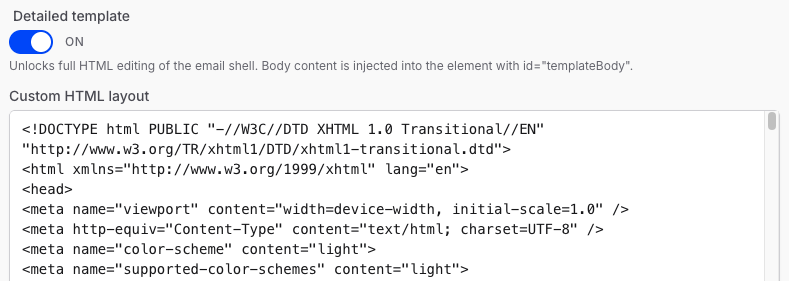
- 2Paste the structure into your AI and prompt it for a modern email layout. Ask it to keep the element with id="templateBody" and leave its contents alone.
- 3Copy the generated HTML back into the Custom HTML layout field.
- 4Save the template and use the email preview to check that the body shows up in the right place.
The generated HTML must keep the element with id="templateBody"; that is where Amphi injects the email body.
Tags split both your audience and your content into groups you can then work with separately: aim an email at them, or build a page of their own.
Tags play two different roles in Amphi. Do not mix them up; they are set up in different places and serve different purposes.
- Attendee tags: the audience assigns them during a session, and you then talk to one segment only.
- Content tags: you mark speakers or sessions with them and the public page shows only what carries a given tag.
Attendee tags
- 1Before the event, the organiser or the speaker prepares a set of tags. Sports, for example: football, ice hockey, squash.
- 2During the session attendees can tag themselves with the prepared tags through a chat interaction, which the speaker can prompt them to do.
- 3After the event you have a segmented audience. You can export the tagged attendees, or send them an email.
Tags are collected through the chat. With chat switched off for a session, an attendee has nowhere to pick a tag.
Targeted communication by tag
Pick a tag people assigned themselves, write a template, and Amphi sends the email to that segment only. Feedback collection can be aimed the same way: at everyone, or at one tagged segment.
Emails aimed at a tag are of the Custom category, so they count toward the limit set by your plan; see Which emails count toward the limit.
Content tags on the public page
You can tag content as well: speakers or sessions. The by tags layout then shows only the items carrying that tag, so you can split speakers into categories and give each its own page. See Publishing conference content.
Tags do not work in archive mode; emails by tag cannot be sent.
Tags are available on every plan, Free included.
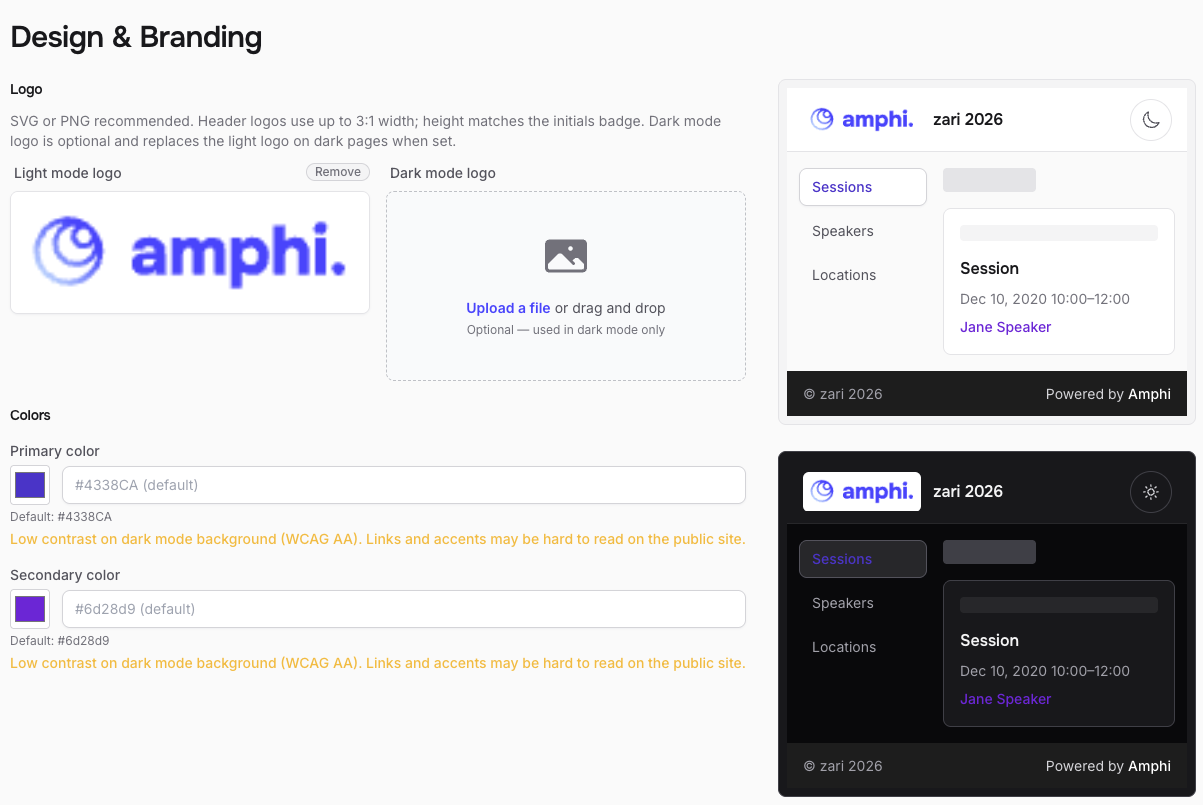
Amphi supports the following forms of branding:
- Your logo, shown on the event’s public site and available for use in email templates
- Primary and secondary color settings
- A custom domain in the URL (paid plans only)
If you want more extensive brand changes, or a public site tailored to your needs, take a look here.
We're still building this feature. For now we only support embedded players; you add the video by pasting a link.
Amphi is built around several ways to attach video to a talk. The first one works today; the other three are on the way.
Embedded links
The video stays with the provider you already use; you only paste its link into Amphi. The player then shows up right in the talk detail, but the file itself never sits with us: storage and bandwidth stay on the provider's side. In practice it means copying the video's address and pasting it into the talk.
Supported providers:
- YouTube, including YouTube Live
- Vimeo
- Microsoft Teams
- Zoom
- Google Meet
- Free-form iframe: any web page, so any other provider that offers an embed code for the video works too
Coming soon
- Video file upload: upload the video straight into Amphi and we take care of hosting and playback.
- Live playback from your own source (RTMP): push the stream from your broadcasting software to an RTMP address and Amphi shows it in the talk. This is how you bring a running video call into Amphi, for example on Teams or Zoom. Your production crew can push camera feeds to the RTMP endpoint the same way. You cannot interact with the running call from Amphi. You are there as an observer.
- Automatic recording of the broadcast: the incoming RTMP stream is recorded as it runs, so the talk keeps the recording afterwards with no extra work.
Video-hour limits apply to every option except embedded links; a pasted link does not consume video hours at all. For details see Raising quotas.
An API (Application Programming Interface) is the interface two programs use to talk to each other. It lets another system or tool read and change data in Amphi without anyone clicking through the admin. It is typically used to connect Amphi to your other systems or to an AI assistant.
To access the API, first generate an access token in the Amphi settings. The token works as your “login credentials”: anyone who has it can work with your account through the API, so don't share it with anyone.
All available operations are described in our Open API documentation.
With the MCP connector, you can connect your chatbot and let it help you. Once connected, you can dictate instructions and the AI creates talks, descriptions, invitations, and templates for you, for example:
- “Create a talk on July 17 from 8:00 titled XY and generate the abstract in the description from the attached presentation.”
- “Invite these 50 attendees using the emails in the attachment and use the sample invite email as a template.”
- “Update speaker Jane Doe's bio from her LinkedIn profile and add a link to the uploaded presentation.”
How to set it up
Amphi can be connected to a range of AI tools. Each one is set up a little differently, so we don't walk through it step by step here; we assume you know your tool. The main difference is whether your AI assistant supports MCP or not.
Your tool supports MCP
Copy the MCP URL from the Amphi admin and add it to your tool as a new connector. The assistant can then work with your events. How to add a connector is covered in each tool's documentation:
Your tool doesn't support MCP
Some tools (or some of their plans) don't support MCP. In that case, you go through the regular API instead. Generate an access token in the Amphi settings and give it to your tool. The tool then reads the Amphi Open API documentation and calls the API on your behalf.
The AI assistant works with the same permissions as the account it is connected to. Don't share the token with anyone, and review the changes the AI makes before you publish them.